
Google Vids & Omni 1.2: Automate Video Ads Without Editors

Google Vids & Omni 1.2: Automate Video Ads Without Editors
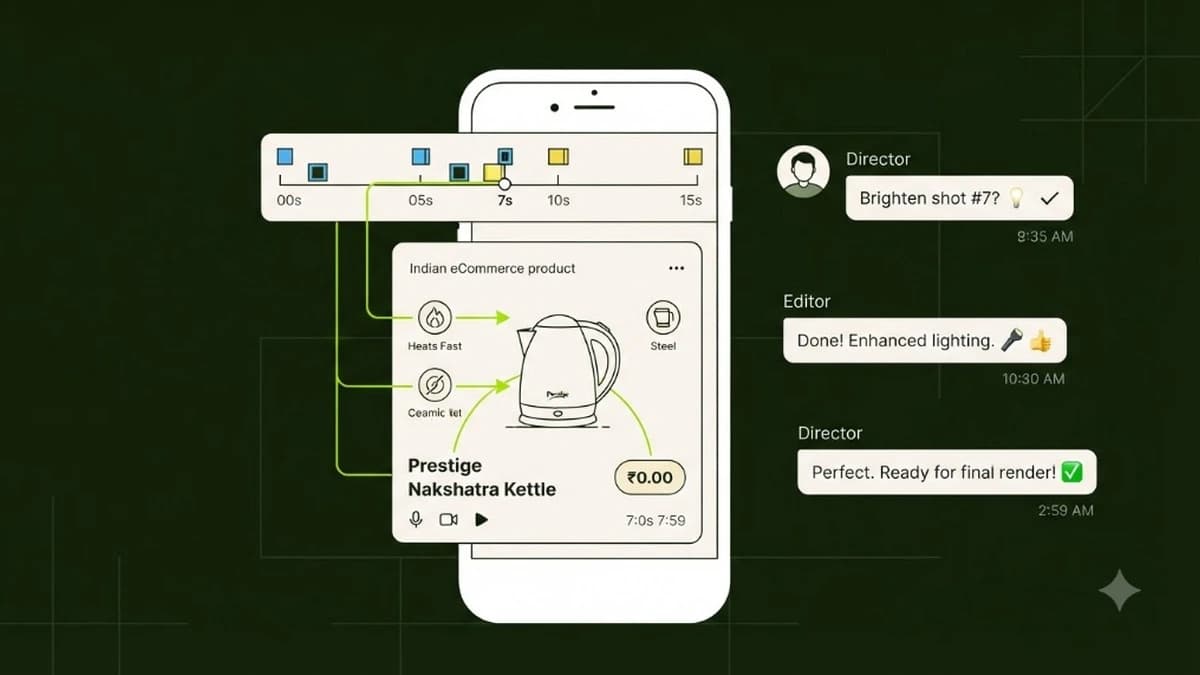
Google Vids combined with the Gemini Omni 1.2 Flash model allows Indian solopreneurs and content creators to automate the entire video production pipeline—from scriptwriting to storyboarding and video generation—in under 20 minutes. This workflow eliminates the need for expensive video editing software like Premiere Pro and cuts agency production costs to ₹0.
For small business owners and solo creators in India, creating regular video content is one of the highest-leverage growth activities. Yet, it is also the first operational task that founders abandon when workloads spike. Recording footage, cutting dead air, syncing audio, adding captions, and licensing stock B-roll consumes hours of mental energy.
With Google's integration of the Gemini Omni 1.2 Flash model directly into Google Vids (part of Google Workspace), video creation has transformed into a browser-based, AI-orchestrated canvas.
What is Google Vids and How Does Omni 1.2 Power It?
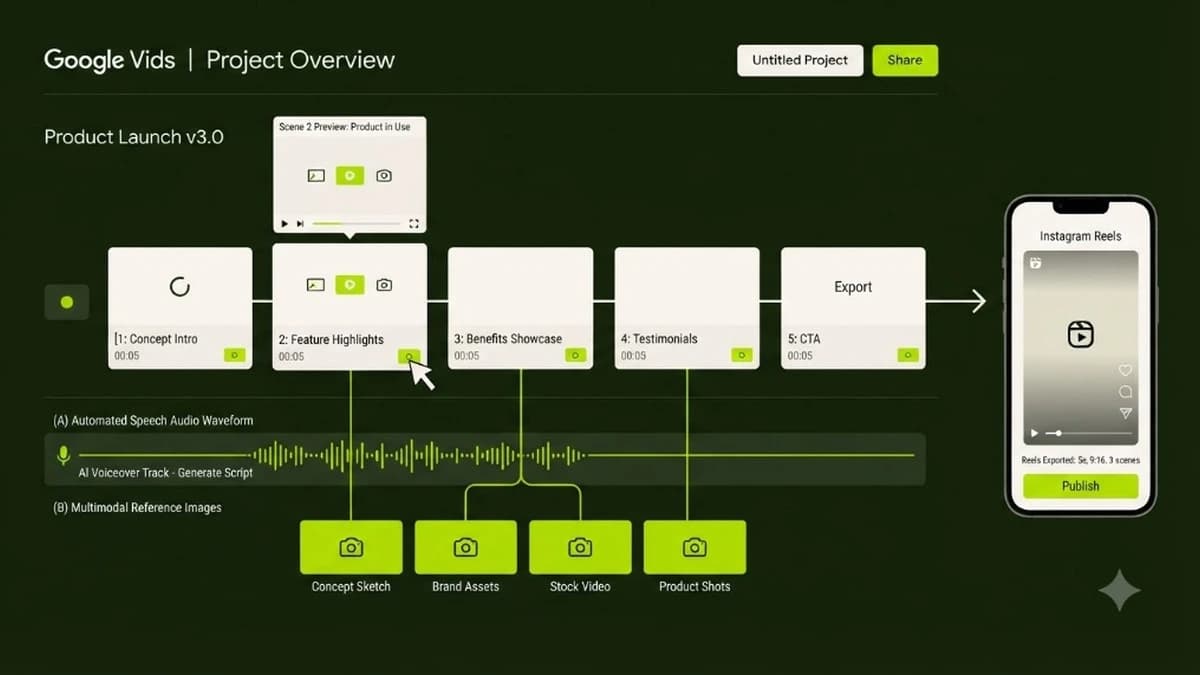
Google Vids is Google’s AI-powered video creation app designed for workplace communication, marketing, and commercial content. Unlike traditional video editors that present you with an intimidating blank timeline, Google Vids operates like Google Slides: each scene is a discrete card on a storyboard canvas.
By pairing Google Vids with the Gemini Omni 1.2 Flash model, you unlock three major capabilities:
- Automated Storyboard Generation: Type a single objective, and Gemini writes the full voiceover script, breaks it into sequential visual scenes, and suggests appropriate pacing.
- Native AI B-Roll with Omni 1.2: Instead of searching through generic stock video libraries where every clip looks artificial, Vids calls Omni 1.2 Flash to generate bespoke 15-second video clips tailored to your exact script lines.
- Studio-Grade Voiceover and Captions: Integrated text-to-speech generates natural voiceovers in Indian English, Hindi, and regional accents, perfectly synced with animated text captions.
Creator Tool Comparison: Google Vids vs Canva vs CapCut vs InVideo
Capability & Metric | Google Vids + Omni 1.2 | Canva Video | CapCut Desktop | InVideo AI |
|---|---|---|---|---|
Generative Video Engine | Gemini Omni 1.2 Flash (15s) | Third-party Runway plugin | Basic AI script-to-video | Proprietary diffusion model |
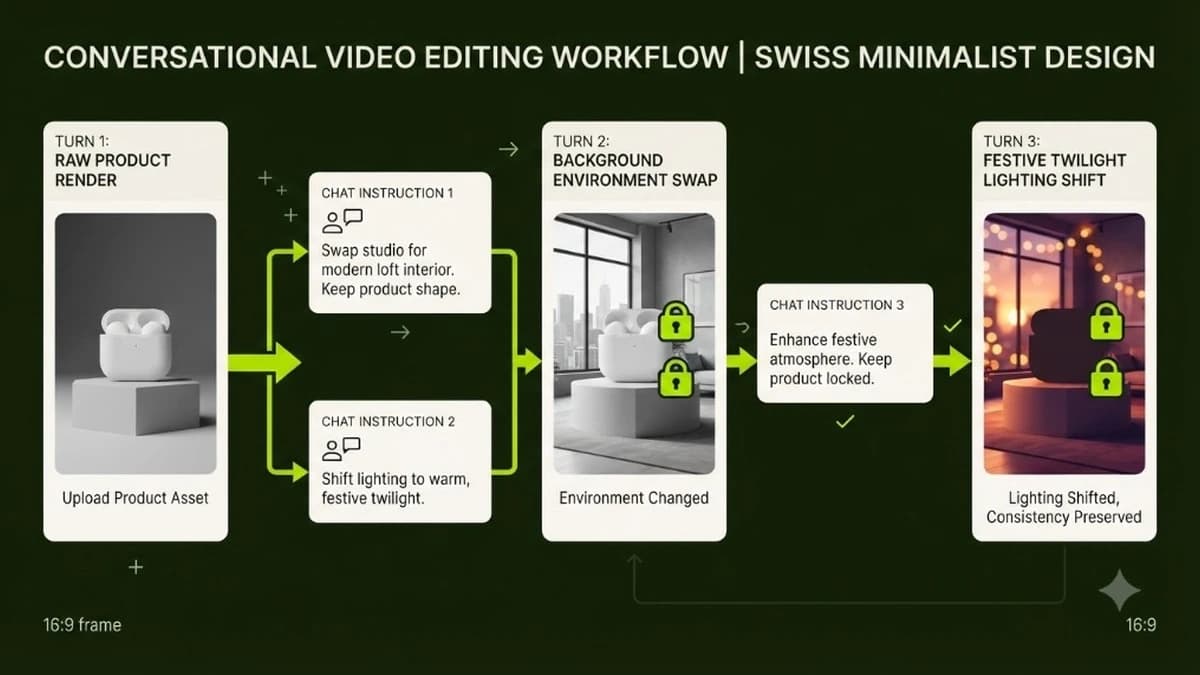
Multi-Turn Video Editing | Yes (Conversational chat) | No (Timeline only) | No (Manual cuts) | Partial (Text prompts) |
Workspace Integration | Direct Google Drive & Docs sync | Cloud storage | Local device / Cloud | Standalone web app |
Monthly Cost in India | Included in Workspace / Free tier | ₹499/mo (Pro) | ₹890/mo (Pro features) | ₹1,650/mo to ₹3,500/mo |
Indian Voiceover Accents | Native Google Speech engines | Standard TTS | CapCut voices | Stock robotic TTS |
Learning Curve | Zero (Slide-deck layout) | Easy | Medium (Timeline tracks) | Easy |
For creators managing client deliverables or running their own eCommerce stores, Google Vids provides an all-in-one ecosystem without juggling multiple subscriptions.
Step-by-Step Guide: Building a 30-Second Commercial Ad in Google Vids
Here is how a solopreneur or agency owner can produce a polished 30-second commercial ad consisting of two 15-second Omni 1.2 scenes in under 20 minutes.
Step 1: Initialize the Project with a Creative Brief
Open Google Vids inside your Google Workspace dashboard and click Help me create a video.
Enter your campaign brief:
"Create a 30-second commercial product video for an artisanal roasted almond brand based in Delhi. Highlight the crunch, natural Himalayan pink salt seasoning, and healthy snacking benefits for busy office professionals. Tone: energetic, premium, modern."
Gemini analyzes the brief and produces a two-scene storyboard outline with voiceover narration and visual descriptions.
Step 2: Generate Bespoke Video Clips Using Omni 1.2
Click on Scene 1 (the 0–15 second hook). In the media panel, select Generate with Omni 1.2:
- Upload your product packaging photo as the multimodal visual reference.
- Enter the prompt:
"Cinematic commercial macro shot. A handful of golden roasted almonds with fine Himalayan salt crystals tumbling in slow motion onto a sleek ceramic dish. Warm studio lighting, crisp focus. 15 seconds."
- Click Generate. Omni 1.2 generates the 15-second video clip and embeds it directly into your scene canvas.
Repeat the process for Scene 2 (the 15–30 second demonstration and call-to-action), prompting an overhead view of the almond pouch sitting beside a modern laptop and notebook with morning sunlight streaming in.
Step 3: Configure Natural Indian English Voiceover
Navigate to the Audio tab in Google Vids:
- Paste your generated narration script.
- Select a natural Indian English voice profile.
- Toggle Auto-Ducking: Vids automatically lowers the background music bed whenever the voiceover speaks, ensuring professional broadcast clarity.
Step 4: Add Animated Captions and Brand Identity
Select Text Styles and choose a clean modern typography pairing (such as Instrument Sans).
- Toggle Auto-Captions: Vids transcribes the audio track and animates subtitles synchronized with each spoken word.
- Insert your brand logo in the top right corner and add your discount code banner (e.g., "Use code HEALTHY20 for 20% off").
Step 5: Export and Multi-Channel Deployment
Click Share / Export and render in 1080p MP4. Your commercial video is ready for deployment across Instagram Reels, YouTube Shorts, and WhatsApp Status updates.
The Weekly 5-Video Content Production Schedule for Solopreneurs
To maintain consistent organic reach on social platforms, Indian small business owners can follow this streamlined weekly schedule:
- Monday (Planning & Scripting - 30 mins): Write 5 campaign hooks in Google Docs based on customer questions.
- Tuesday (Scene Generation - 45 mins): Open Google Vids and generate 15-second Omni 1.2 visual clips using product photos.
- Wednesday (Voiceover & Captions - 30 mins): Review audio tracks, auto-generate captions, and review pacing.
- Thursday (Batch Export & Scheduling - 30 mins): Export all 5 videos and schedule them using Meta Business Suite.
- Friday (Performance Review - 15 mins): Review view counts and conversion clicks; adapt next week's hooks based on top performers.
Total time investment: 2.5 hours per week, saving over ₹30,000 monthly compared to hiring an outsourced creative team.
To learn how to connect these automated content engines to automated lead capture and WhatsApp sales bots, explore our complete Build Your First AI Agent course.
Learn to build AI workflows that handle your busywork — live sessions, real projects, zero code.
See the courseBeginner-friendly